
Conversion tracking requires a Pro plan
subscription or higher (or an active conversion trial).
lead event happens when a user performs an action that indicates interest in your product or service. This could be anything from:
- Signing up for an account
- Adding a product to cart
- Joining a mailing list

Prerequisites
Before you get started, make sure you follow the CodeQR Conversions quickstart guide to get CodeQR Conversions set up for your links:- Enable conversion tracking for your links
- Install the @codeqr/analytics client-side SDK
- Install the CodeQR server-side SDK
Configure NextAuth.js Options
Then, set up your NextAuth.js configuration options to track lead conversion events using thecodeqr TypeScript SDK.
Here’s how it works in a nutshell:
- Use NextAuth’s
signInevent to detect when there’s a new sign up. - If the user is a new sign up, check if the
cq_idcookie is present. - If the
cq_idcookie is present, send a lead event to CodeQR usingcodeqr.track.lead - Delete the
cq_idcookie.
cq_id cookie anymore.
Create a NextAuth.js Route Handler
Finally, import theauthOptions variable you created earlier and use NextAuth to create a handler for your NextAuth.js routes.
View your conversions
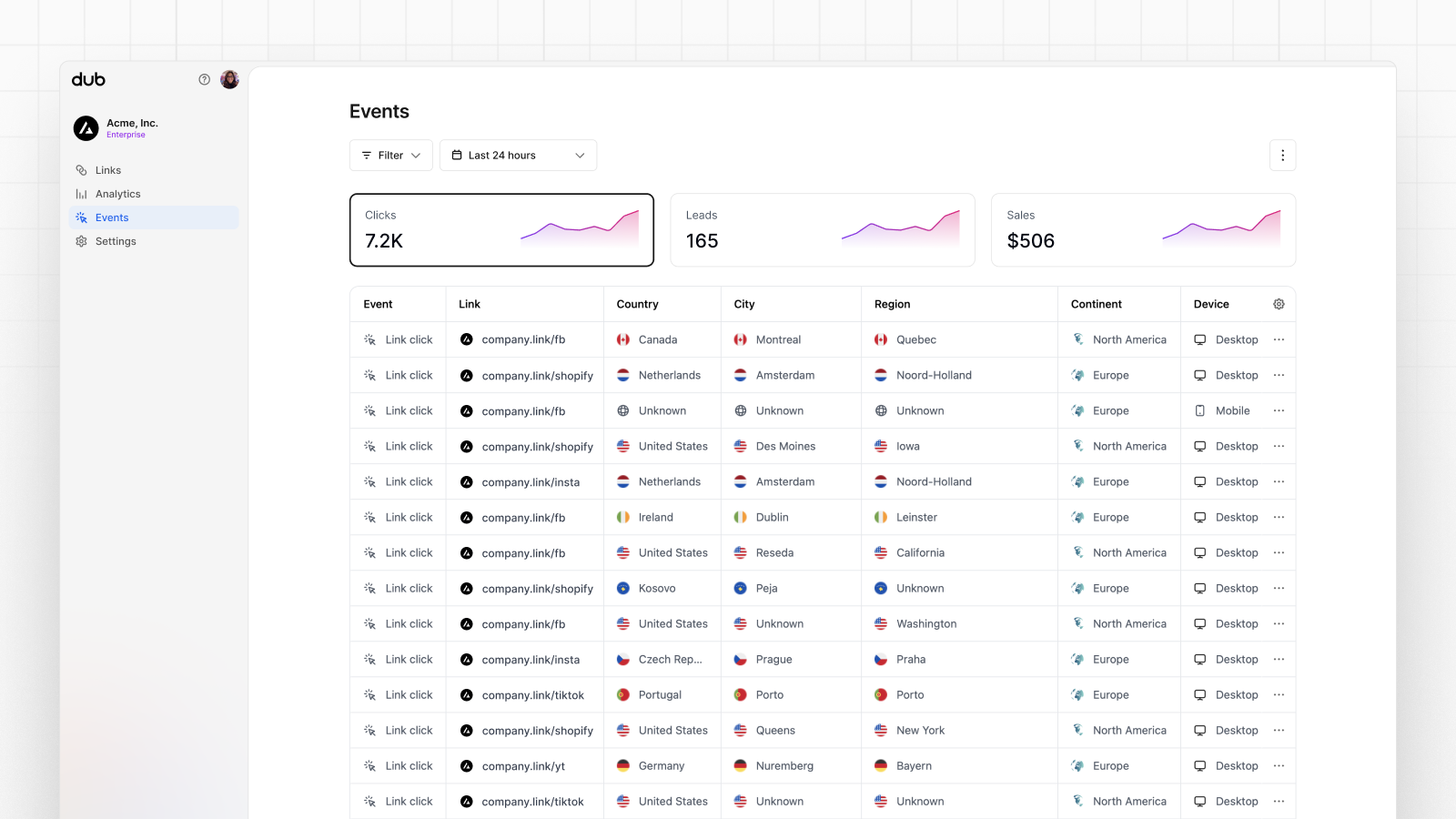
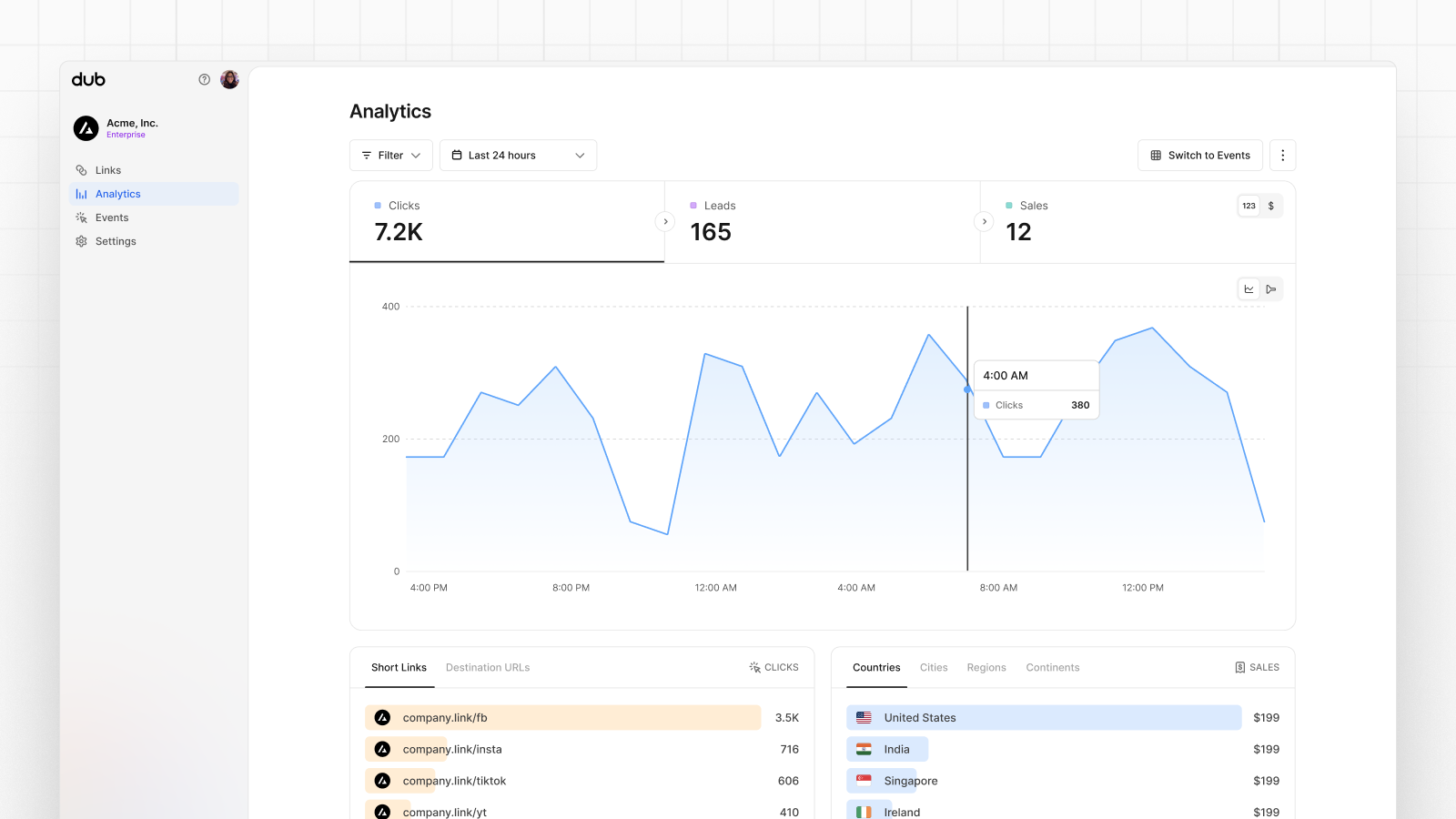
Once you’ve enabled conversion tracking for your links, all your tracked conversions will show up on your Analytics dashboard. We provide 3 different views to help you understand your conversions:- Time-series: A time-series view of the number clicks, leads and sales.
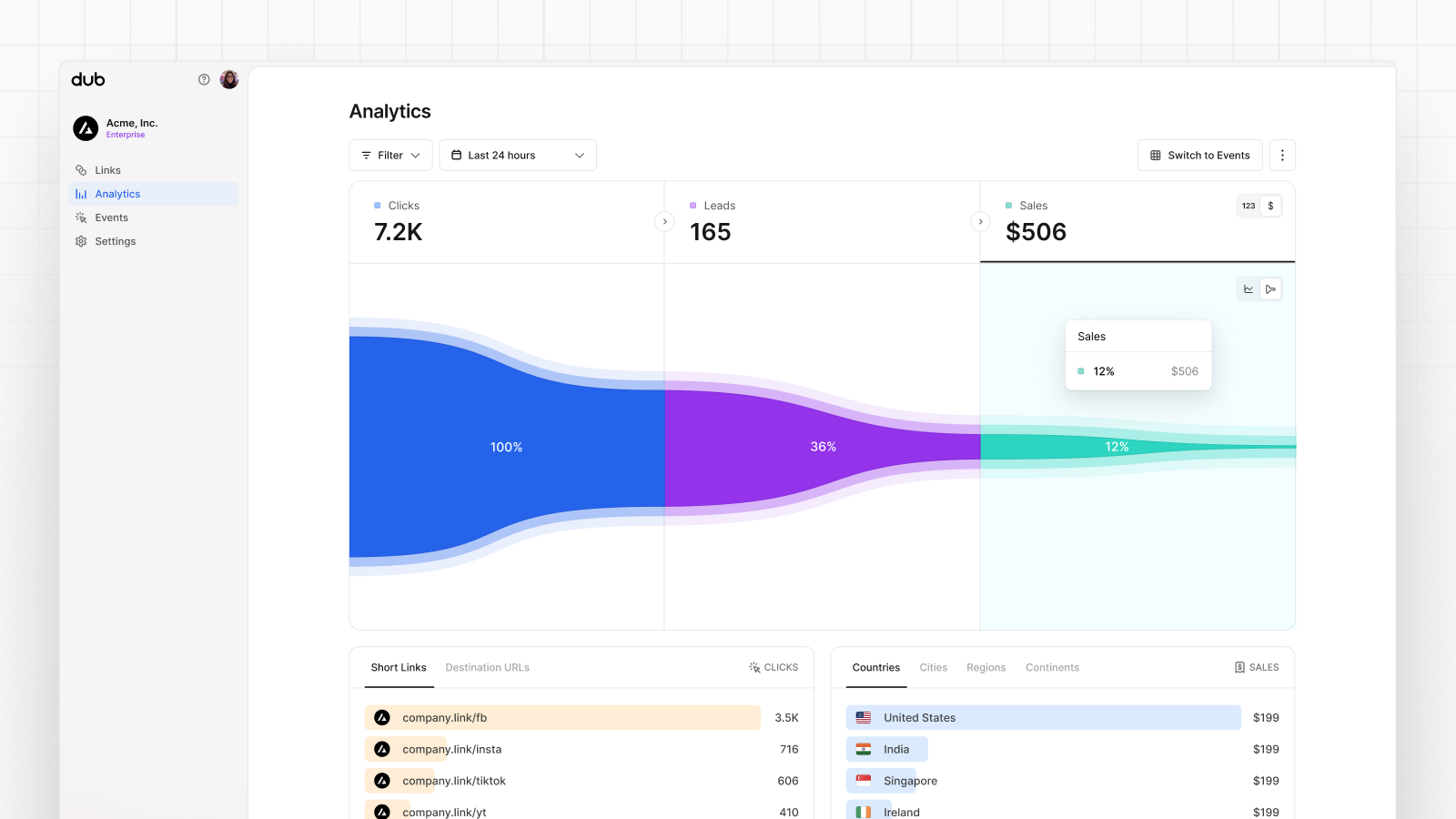
- Funnel chart: A funnel chart view visualizing the conversion & dropoff rates across the different steps in the conversion funnel (clicks → leads → sales).
- Real-time events stream: A real-time events stream of every single conversion event that occurs across all your links in your project.