> ## Documentation Index
> Fetch the complete documentation index at: https://docs.codeqr.io/llms.txt
> Use this file to discover all available pages before exploring further.
# Client-side click-tracking
> Track clicks on the client-side using query parameters
With the [`@codeqr/analytics` script](/sdks/client-side/introduction), you can track clicks on the client-side using query parameters (e.g. `?via=john`, `?ref=jane`).
A few use cases include:
* You're running a referral program with dual-sided incentives and want to display a banner that says: *"John referred you to Acme and gave you 25% off"*
* You have dynamically generated referral pages (e.g. [Tesla](https://www.tesla.com/referral/peeroke520149)) and want to track clicks [using a `trackClick()` function](#manually-tracking-clicks-with-the-trackclick-function) inside your application code.
* You are migrating from an existing affiliate management platform (e.g. [Rewardful](https://codeqr.io/help/article/migrating-from-rewardful)) that uses query parameters to track conversions.
## Quickstart
Here's how you can enable client-side click-tracking with the `@codeqr/analytics` script:
First, you'll need to [add a custom short link domain](https://codeqr.io/help/article/how-to-add-custom-domain) to your CodeQR project. You can use a domain you already own, or leverage our [free .link domain offer](https://codeqr.io/help/article/free-dot-link-domain) to register a custom domain like `yourcompany.link` for free.
This is the domain that you'll use for your short links on CodeQR.
Then, you'll need to allowlist your site's domain to allow the client-side click events to be ingested by CodeQR. To do that, navigate to your [project's Analytics settings page](https://app.codeqr.io/settings/analytics) and add your site's domain to the **Allowed Hostnames** list.
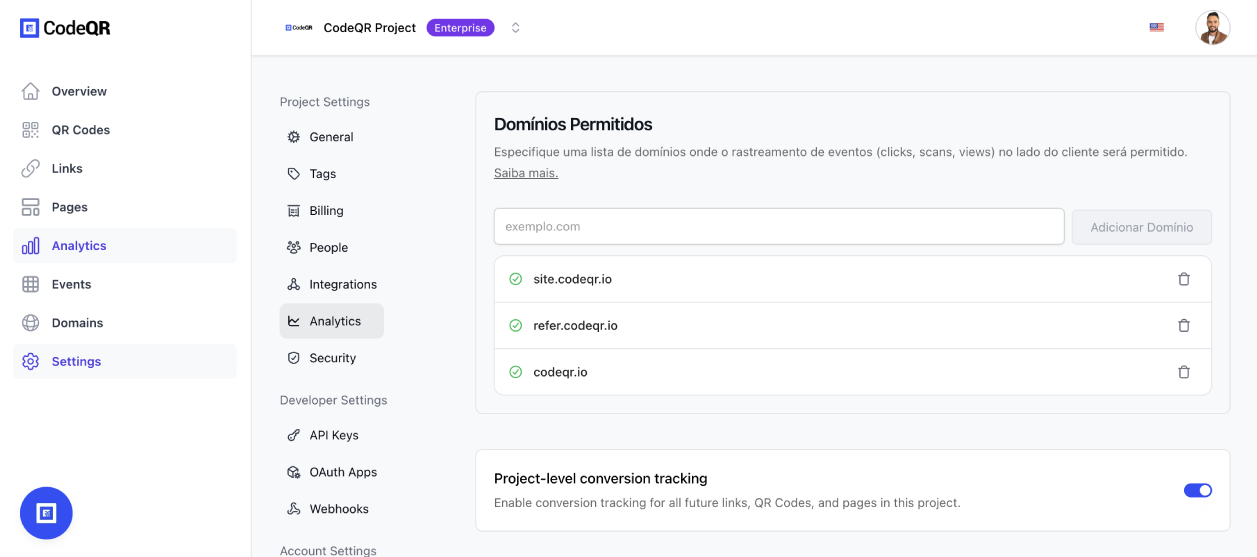 When testing things out locally, you can add `localhost` to the **Allowed
Hostnames** list temporarily. This will allow local events to be ingested by
CodeQR. Don't forget to remove it once you're ready to go live!
Next, install the CodeQR [client-side SDK](/sdks/client-side/introduction) and initialize it with the domain you added in the previous step.
```typescript React/Next.js theme={null}
// install the package (e.g. npm install @codeqr/analytics)
import { Analytics as CodeQRAnalytics } from "@codeqr/analytics/react";
export default function App() {
return (
{/* Your app code here */}
);
}
```
```javascript Other Frameworks theme={null}
// include this script tag in your HTML Head tag
```
Here's the full list of parameters you can pass to the script:
The base URL for the CodeQR API. This is useful for [setting up reverse
proxies](/sdks/client-side/features/reverse-proxy-support) to avoid
adblockers.
The attribution model to use for the analytics event. The following
attribution models are available:
* `first-click`: The first click model
gives all the credit to the first touchpoint in the customer journey.
* `last-click`: The last click model gives all the credit to the last
touchpoint in the customer journey.
Specifies the value for the `Domain` Set-Cookie attribute. This is useful
for cross-domain tracking. Example: `.example.com`
Specifies the `Date` object to be the value for the `Expires` Set-Cookie
attribute. Example: `new Date('2024-12-31')`
Specifies the number (in days) to be the value for the `Expires`
Set-Cookie attribute. Example: `90`
Specifies the value for the `Path` Set-Cookie attribute. By default, the
path is considered the "default path". Example: `/`
Configure the domains that CodeQR will track. The following properties are available:
The CodeQR custom domain for [referral program client-side click tracking](http://d.to/clicks/refer)
(previously `shortDomain`).
Example: `refer.codeqr.io`
The CodeQR short domain for tracking site visits.
Example: `site.codeqr.io`
An array of domains for cross-domain tracking. When configured, the existing
`cq_id` cookie will be automatically appended to all outbound links
targeting these domains to enable cross-domain tracking across different
applications.
Example: `["codeqr.link", "git.new"]`
The query parameter to listen to for client-side click-tracking (e.g.
`?via=abc123`).
Custom properties to pass to the script tag. Refer to
[MDN](https://developer.mozilla.org/en-US/docs/Web/API/HTMLScriptElement) for
all available options.
To avoid ad-blockers from blocking your click-tracking requests, we recommend setting up a reverse proxy.
Refer to the [Reverse-proxy support](/sdks/client-side/features/reverse-proxy-support) guide to learn how to set one up.
To verify that your click-tracking is working, run your website locally and append the URL with the unique key of your short link
For example, if your short link is `https://go.example.com/abc123`, you'll need to append `?via=abc123` to the URL.
Once you've done that, check if the following is true:
1. There is a successful `/track/click` request in your browser's **Network** tab (and no errors in the **Console** tab).
2. The `cq_id` cookie is being set upon a successful `/track/click` request.
3. The click tracked correctly in the [**Events**](https://app.codeqr.io/events) tab of your CodeQR project.
## Manually tracking clicks with the `trackClick()` function
This is helpful for tracking clicks on:
* Dynamically generated referral pages (e.g. [Tesla](https://www.tesla.com/referral/peeroke520149))
* Dynamic user-generated content/webpages:
* CodeQR's public analytics dashboards (e.g. [app.codeqr.io/share/:slug](https://app.codeqr.io/share/dash_6NSA6vNm017MZwfzt8SubNSZ))
* Tella's video pages (e.g. [tella.tv/video/:slug](https://www.tella.tv/video/cluvcfcfi00tw0fjrgizr4pw2))
This feature is coming soon. If you'd like early access, please [contact
us](https://codeqr.io/contact/support).
## Differences from server-side click-tracking
Server-side click-tracking is enabled by default for all CodeQR links and come with the following attributes:
| Attribute | Type | Description |
| :----------- | :------ | :----------------------------------------------------------------------------------------------- |
| `timestamp` | string | The timestamp of the click event |
| `id` | string | The unique ID of the click event |
| `url` | string | The destination URL that the link resolved to – this can vary if geo/device-targeting is enabled |
| `continent` | string | The continent of the user who clicked the link |
| `country` | string | The country of the user who clicked the link |
| `city` | string | The city of the user who clicked the link |
| `device` | string | The device of the user who clicked the link |
| `browser` | string | The browser of the user who clicked the link |
| `os` | string | The operating system of the user who clicked the link |
| `referer` | string | The referrer of the user who clicked the link |
| `refererUrl` | string | The full referrer URL of the user who clicked the link |
| `qr` | boolean | Whether the click event was triggered by a QR code scan |
| `ip` | string | The IP address of the user who clicked the link (non-EU users only) |
These events happen on the server-side and cannot be blocked by browser extensions or ad-blockers, which improves the accuracy of your analytics data.
When testing things out locally, you can add `localhost` to the **Allowed
Hostnames** list temporarily. This will allow local events to be ingested by
CodeQR. Don't forget to remove it once you're ready to go live!
Next, install the CodeQR [client-side SDK](/sdks/client-side/introduction) and initialize it with the domain you added in the previous step.
```typescript React/Next.js theme={null}
// install the package (e.g. npm install @codeqr/analytics)
import { Analytics as CodeQRAnalytics } from "@codeqr/analytics/react";
export default function App() {
return (
{/* Your app code here */}
);
}
```
```javascript Other Frameworks theme={null}
// include this script tag in your HTML Head tag
```
Here's the full list of parameters you can pass to the script:
The base URL for the CodeQR API. This is useful for [setting up reverse
proxies](/sdks/client-side/features/reverse-proxy-support) to avoid
adblockers.
The attribution model to use for the analytics event. The following
attribution models are available:
* `first-click`: The first click model
gives all the credit to the first touchpoint in the customer journey.
* `last-click`: The last click model gives all the credit to the last
touchpoint in the customer journey.
Specifies the value for the `Domain` Set-Cookie attribute. This is useful
for cross-domain tracking. Example: `.example.com`
Specifies the `Date` object to be the value for the `Expires` Set-Cookie
attribute. Example: `new Date('2024-12-31')`
Specifies the number (in days) to be the value for the `Expires`
Set-Cookie attribute. Example: `90`
Specifies the value for the `Path` Set-Cookie attribute. By default, the
path is considered the "default path". Example: `/`
Configure the domains that CodeQR will track. The following properties are available:
The CodeQR custom domain for [referral program client-side click tracking](http://d.to/clicks/refer)
(previously `shortDomain`).
Example: `refer.codeqr.io`
The CodeQR short domain for tracking site visits.
Example: `site.codeqr.io`
An array of domains for cross-domain tracking. When configured, the existing
`cq_id` cookie will be automatically appended to all outbound links
targeting these domains to enable cross-domain tracking across different
applications.
Example: `["codeqr.link", "git.new"]`
The query parameter to listen to for client-side click-tracking (e.g.
`?via=abc123`).
Custom properties to pass to the script tag. Refer to
[MDN](https://developer.mozilla.org/en-US/docs/Web/API/HTMLScriptElement) for
all available options.
To avoid ad-blockers from blocking your click-tracking requests, we recommend setting up a reverse proxy.
Refer to the [Reverse-proxy support](/sdks/client-side/features/reverse-proxy-support) guide to learn how to set one up.
To verify that your click-tracking is working, run your website locally and append the URL with the unique key of your short link
For example, if your short link is `https://go.example.com/abc123`, you'll need to append `?via=abc123` to the URL.
Once you've done that, check if the following is true:
1. There is a successful `/track/click` request in your browser's **Network** tab (and no errors in the **Console** tab).
2. The `cq_id` cookie is being set upon a successful `/track/click` request.
3. The click tracked correctly in the [**Events**](https://app.codeqr.io/events) tab of your CodeQR project.
## Manually tracking clicks with the `trackClick()` function
This is helpful for tracking clicks on:
* Dynamically generated referral pages (e.g. [Tesla](https://www.tesla.com/referral/peeroke520149))
* Dynamic user-generated content/webpages:
* CodeQR's public analytics dashboards (e.g. [app.codeqr.io/share/:slug](https://app.codeqr.io/share/dash_6NSA6vNm017MZwfzt8SubNSZ))
* Tella's video pages (e.g. [tella.tv/video/:slug](https://www.tella.tv/video/cluvcfcfi00tw0fjrgizr4pw2))
This feature is coming soon. If you'd like early access, please [contact
us](https://codeqr.io/contact/support).
## Differences from server-side click-tracking
Server-side click-tracking is enabled by default for all CodeQR links and come with the following attributes:
| Attribute | Type | Description |
| :----------- | :------ | :----------------------------------------------------------------------------------------------- |
| `timestamp` | string | The timestamp of the click event |
| `id` | string | The unique ID of the click event |
| `url` | string | The destination URL that the link resolved to – this can vary if geo/device-targeting is enabled |
| `continent` | string | The continent of the user who clicked the link |
| `country` | string | The country of the user who clicked the link |
| `city` | string | The city of the user who clicked the link |
| `device` | string | The device of the user who clicked the link |
| `browser` | string | The browser of the user who clicked the link |
| `os` | string | The operating system of the user who clicked the link |
| `referer` | string | The referrer of the user who clicked the link |
| `refererUrl` | string | The full referrer URL of the user who clicked the link |
| `qr` | boolean | Whether the click event was triggered by a QR code scan |
| `ip` | string | The IP address of the user who clicked the link (non-EU users only) |
These events happen on the server-side and cannot be blocked by browser extensions or ad-blockers, which improves the accuracy of your analytics data.